Tutorial 6 Week 9
Prototyping your project
A. Practical Exercises
Activity 1: Low-fidelity prototypes
Select ONE of the methods for making a low-fidelity prototype (storyboard, card-based, physical
design or using a prototyping tool). NOTE – if you have a physical or paper design, take a photo or
scan the object(s) to include in your Yola site.
Develop at least 3 alternative prototypes for your project, based on the needs determined from
previous activities.
Identify 5-10 representative users. Justify your reasons for selecting these users (eg. For my
Computer Gaming website, my group included males aged 13-18 as I identified them as the major
users of such sites. However, I also included older representatives because I read a report that
stated that the largest growing user group of computer games is aged >50).
Develop a number of simple testing strategies (eg. I set up a small survey which asks users to identify
their preferences from the alternative prototypes in relation to colour, placement of the navigation
etc. I also asked them to perform a simulated ‘walk-through’ to perform the task of buying a game
from the site)
Test these alternative prototypes with the users.
Analyse the results.
Determine which prototype you are going to develop further. (Note – this may be a single choice or
a composite which contains the ‘best parts’ from the various alternatives)
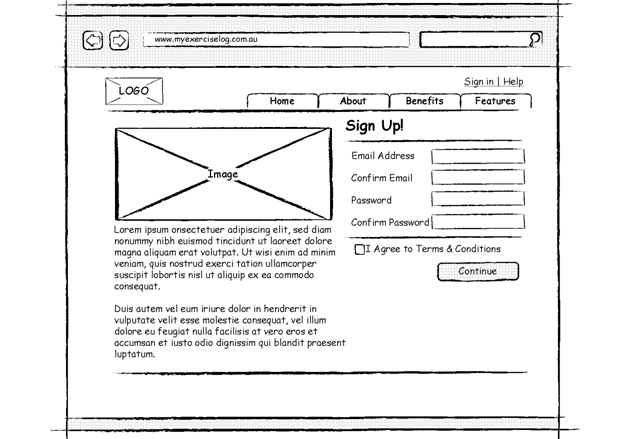
User finds site and enters in details to sing up. They then click “Continue”
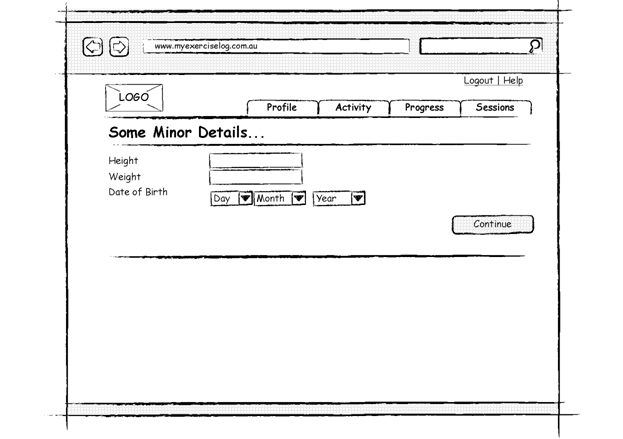
User is presented with another page. The fill in details such as height, weight, and date of birth then they click “Continue”
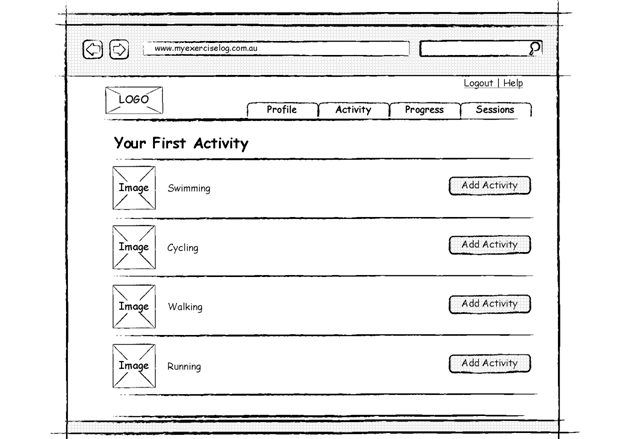
User is presented with page with all the activities available. User Clicks “Add Activity” to the corresponding activity they want.
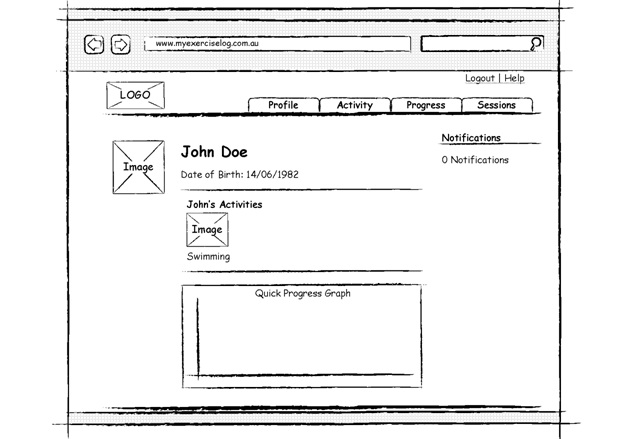
User is presented with their profile. They then click log out.
Representative users:
For the Exercise Logging Web-site 5 chosen representative users were chosen. These representative users were chosen as they have characteristics of the end-user of the Web-site.
First Representative user:
Individuals between the age of 16-34 who were chosen as marjority are physically active and are computer literate.
Second Representative user:
Indivduals who play a sport on the weekend. As they play sport they train during the week, which could lead to the training being track with the Exercise Logging Web-site
Third Representative user:
Individuals that are overweight and want to lose weight. As the individuals want to lose weight they’re motivated to monitor their weight loss and progress, which is where the Exercise Logging Web-site can come into play.
Fourth Representative User:
Personal Trainers. Personal trainers where chosen as they might have individuals who train underneath them that they would like to monitor and show them their progress. They might even get their clients to log their progress on the site and then present it to them.
Fith Representative User:
Weight lifters. Weight lifters were chosen as they monitor their progress to gain size. Having a site that does the monitoring for them, and present them with results is of benefit to them.
Simple testing strategies of the Prototype
For the prototypes I used simple testing strategies to find out how the user interacted with them and what features did they like.
The following are the strategies that I used for testing the prototypes:
- Got 5 potential users to run through each of the prototypes (Nielsen, 2000) to test out its functionality and overall design
- I did direct observation of the users when they interacted with the paper prototypes to see how they interacted with the prototypes
- I gave the users a questionnaire to complete after they finished interacting with the prototype. The questionnaire concentrated on what they thought was a highlight of the prototype design, and if they could see for any room for improvement through colour etc. This was done for each prototype.
- I also carried out a structured interview with the users after they complete the questionnaire on the prototypes. The structured interview was about the overall experience, the elements – form elements - used in the prototype, and what they thought could be improved.
Nielsen, J. (2000). Why you only need to test with 5 users. Retrieved 30/03/2010, 2010, from http://www.useit.com/alertbox/20000319.html
Activity 4: High fidelity prototype
TODO: have to complete a high fidelity prototype. This will coincide with the project.
Activity 3:
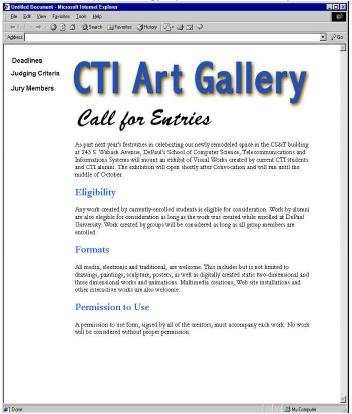
The design principle that is missing is proximity. This design principle is missing from the navigation bar on the right. I have copied and moved elements around on the page to implement the proximity principle. You can now see that with the elements in proximity of each other you can now identify that each link is relating to another. I also put the elements in the order I thought was logical. First off the deadlines, as that is the one that relates to time, so it has to be know that there are dates of submission, secondly, the judging criteria; what will they be judged on? And finally who is doing the judging.
B. Independent Exercises:
Alternative Input and Output
Independent Activity 1: Speech Recognition (input)
Speech recognition is getting better all of the time due to better software and more powerful computers. One of the leading pieces of software in this field is Dragon NaturallySpeaking.
Read the following review -
http://lateralaction.com/articles/dragon-naturallyspeaking-speech-recognition/
Summarise the advantages and disadvantages of using this software.
Also, describe how this software compares to MacSpeech Dictate and the free speech recognition available in Windows Vista.?
Speech recognition today has come along since its origins. Dragon naturally speaking enables you to free yourself from the keyboard, and now type as fast as you can speak. Dragon naturally speaking also learns your speech patterns, so the faster you speak the better the result. With Dragon naturally speaking you can also surf the net, type in any word processor you want, and still be able to get correct spelling and grammar.
There are some disadvantages as well to Dragon Naturally speaking; first off, it’s not 100% perfect when it comes to identifying each word spoken, as English has many words that sound the same and mean something completely different. Sometimes words get placed in the wrong way in a sentence, which leaves for a lot of proof reading. Also Dragon Naturally speaking cannot replace a mouse or a keyboard when it comes to the silent usage of the computer, as you have to speak out loud, therefore this system wouldn’t work in an office environment.
One of the competitors to Dragon Naturally Speaking is MacSpeech. The engine to MacSpeech has the Dragon Naturally Speaking engine as well, because of this MacSpeech has majority of the problems Dragon Naturally Speaking has. In saying this though that means that it has all of the benefits of Dragon Naturally Speaking as well.
Independent Activity 2: Text to Speech (output)
As well as recognising speech there is the option to convert text into speech. This has also improved greatly from the previously available robotic sounding voices.
Review the text to speech demonstration.
http://enjoylearningonline.com/HCI/TTS
You can try out the interactive demonstrations yourself at
http://tts.loquendo.com/ttsdemo/default.asp?page=id&language=en
Comment on the advantages and disadvantages of text to speech. Also, list 3 places or situations where you think text to speech might be useful.
Text to speech is very useful for disabled individuals. Over the years it has come a long way with it capabilities of pronunciation of the written word. Text to speech has advantages and also disadvantages. For example an advantage of text to speech is to demonstrate pronunciation of words, which certain individuals might be having difficulty with. As mentioned before text to speech can also help visually impaired people to listen to the typed word. With these advantages though, there are disadvantages as well. One disadvantage is of course that it is not always perfect in its pronunciation of words. Another disadvantage is that it can sometimes sound digital, as if it is sounding out the word step by step.
Below are 3 places in where text to speech can be used:
- In an office of a visually impaired individual
- In a promotional video to get it sounding profession and clear.
- In a digital dictionary for pronunciation of words.
